Lab
1
Getting Started
Setting up GitHub and Cloud9 Accounts
Sign up for an account at GitHub. Make sure your username matches your New School email address. For example, my email address is rowlettr@newschool.edu, so my GitHub username should be rowlettr. This allows us to link directly to your homepage from the students list at the bottom of this page.
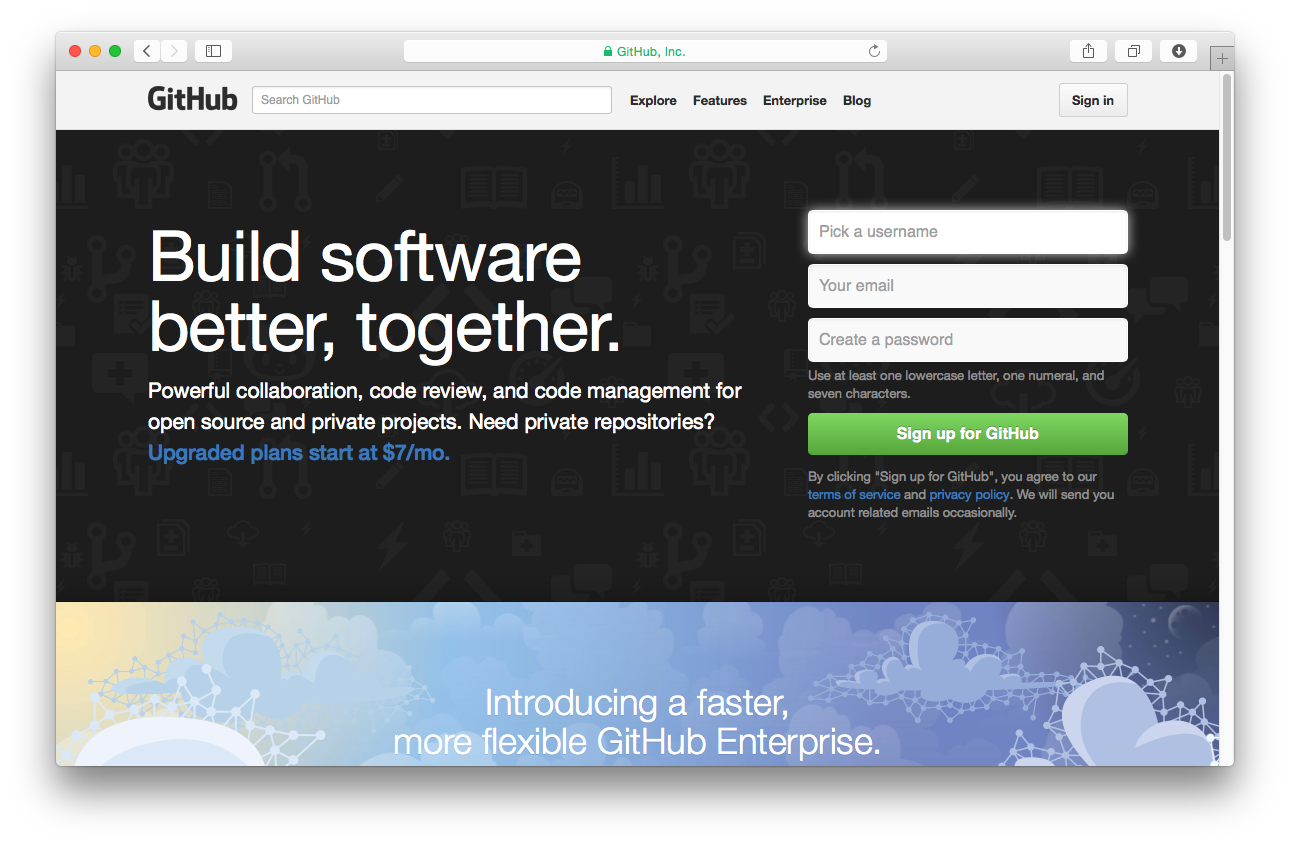
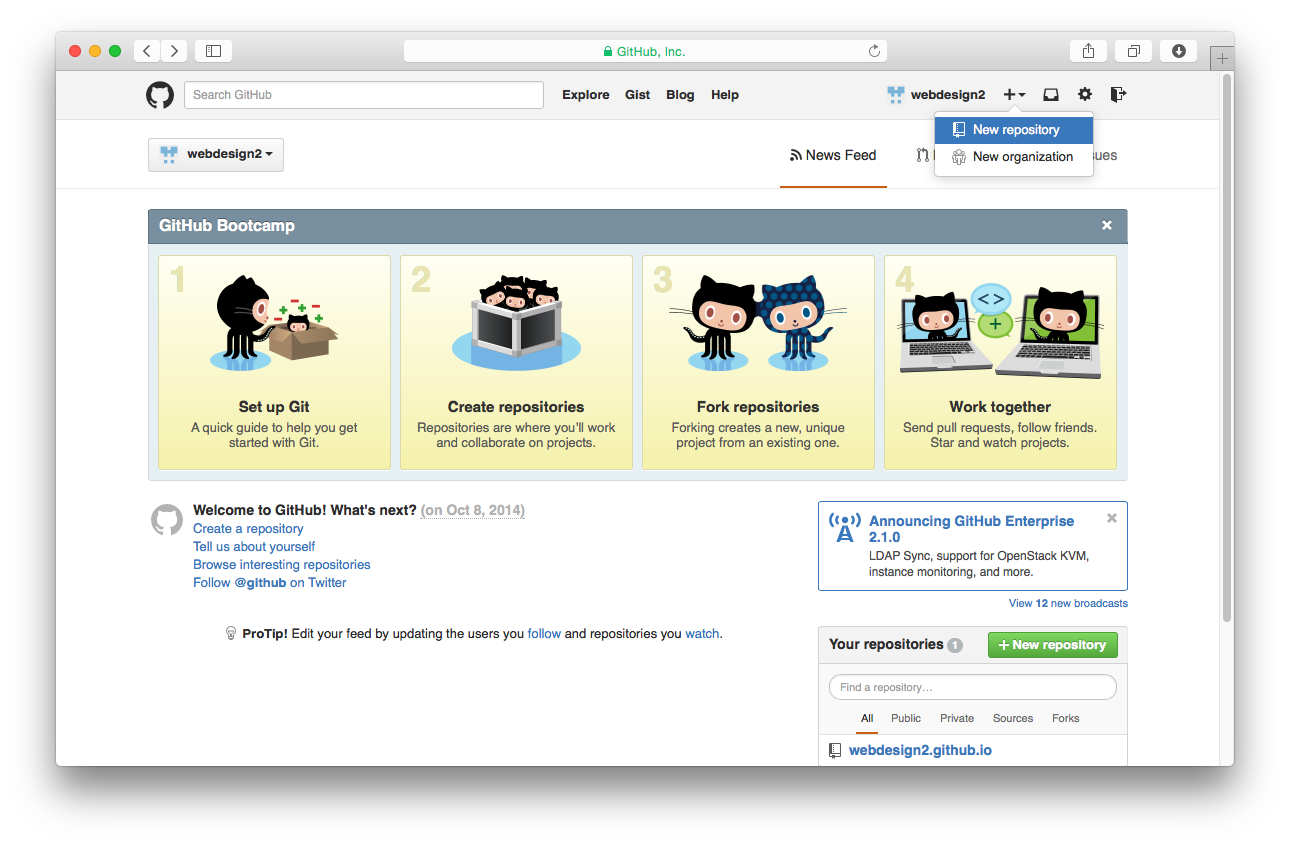
After signing up you should receive an email from GitHub asking to verify your account. Click the link contained in the email and proceed to log in to GitHub. Next, create a new repository using the link under the + icon in the upper right of the GitHub homepage.
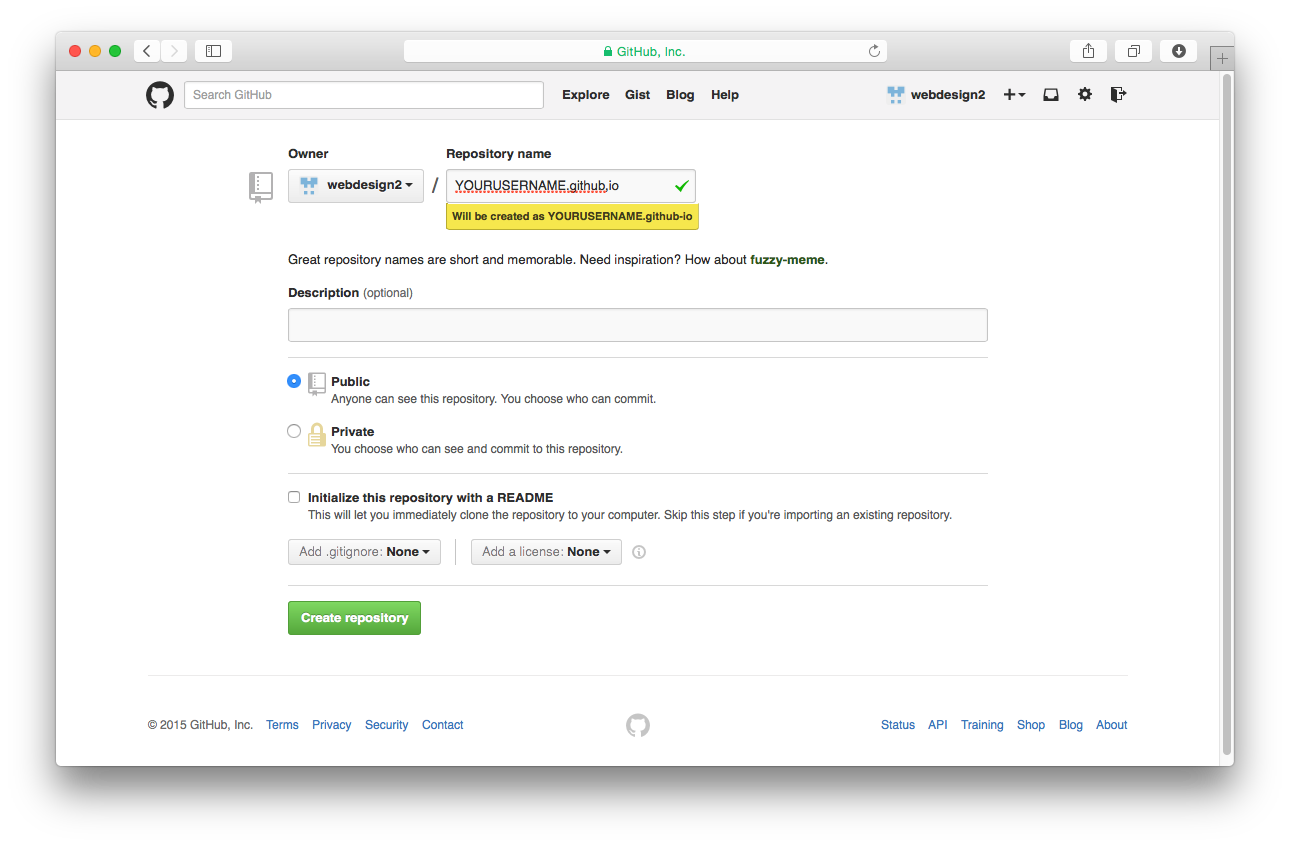
Name your repository YOURUSERNAME.github.io. For example, my username is rowlettr, so my repository should be named rowlettr.github.io.
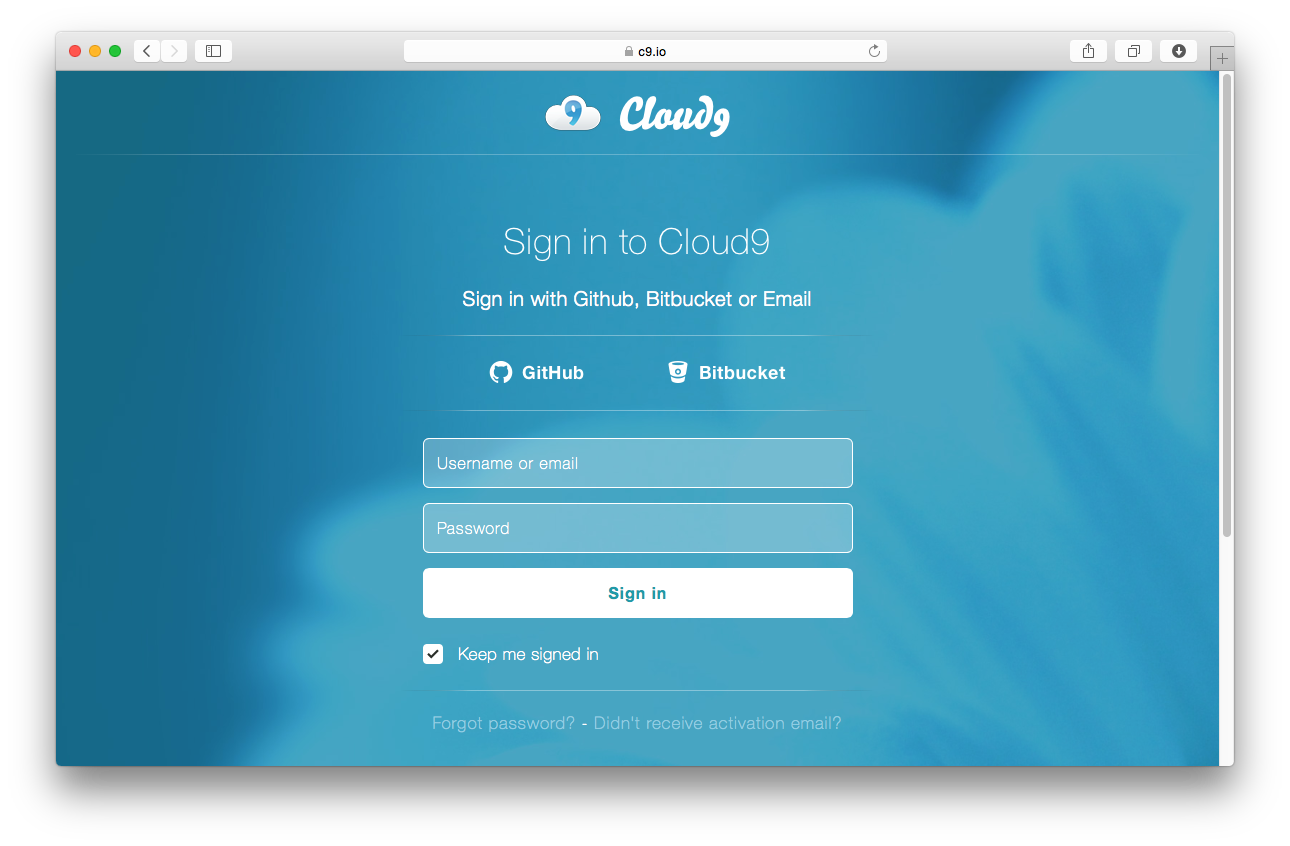
Once your repository is created, navigate to Cloud9 and click GitHub to sign in using your GitHub account.
In the left column of your Cloud9 dashboard, you should see the repository we just created. Click the repository’s name, then click the green Clone to Edit button.
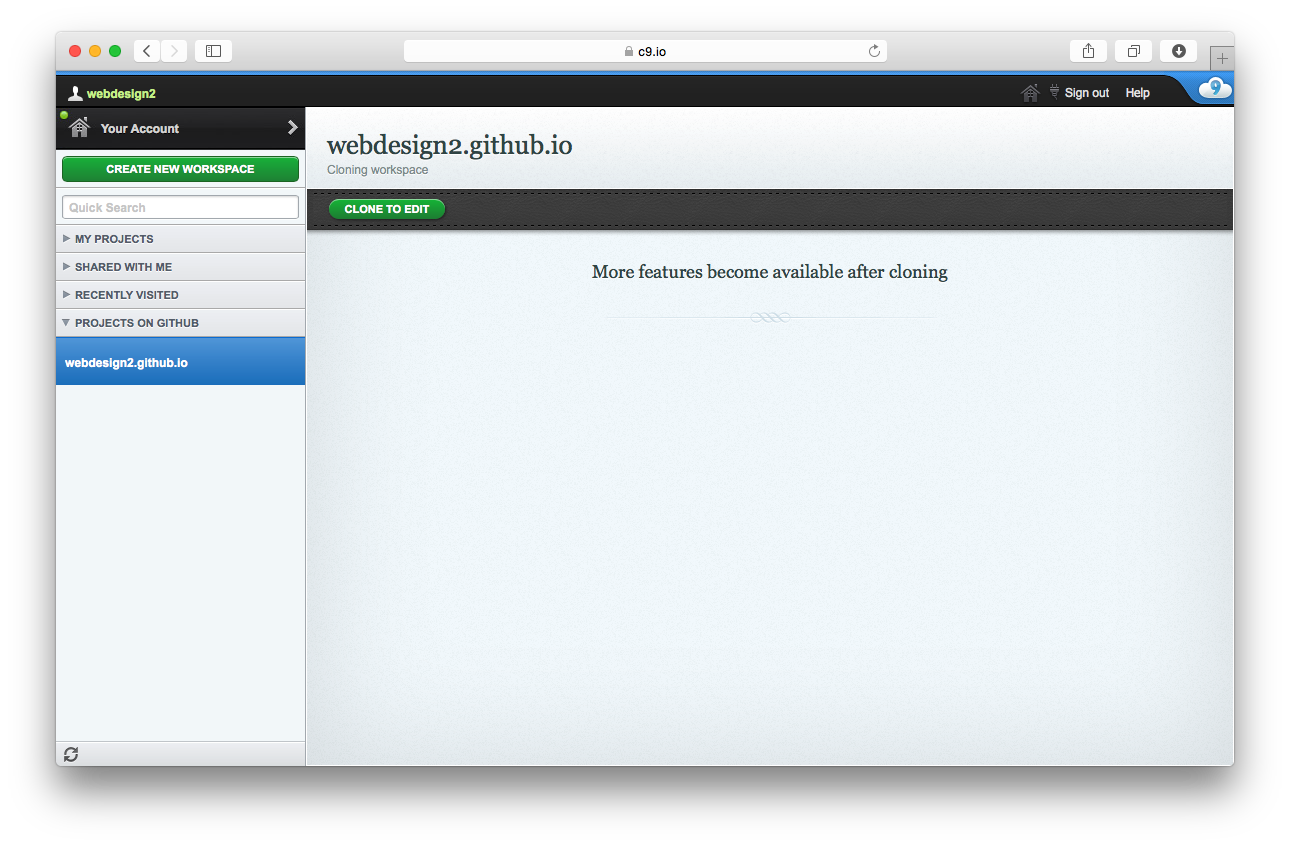
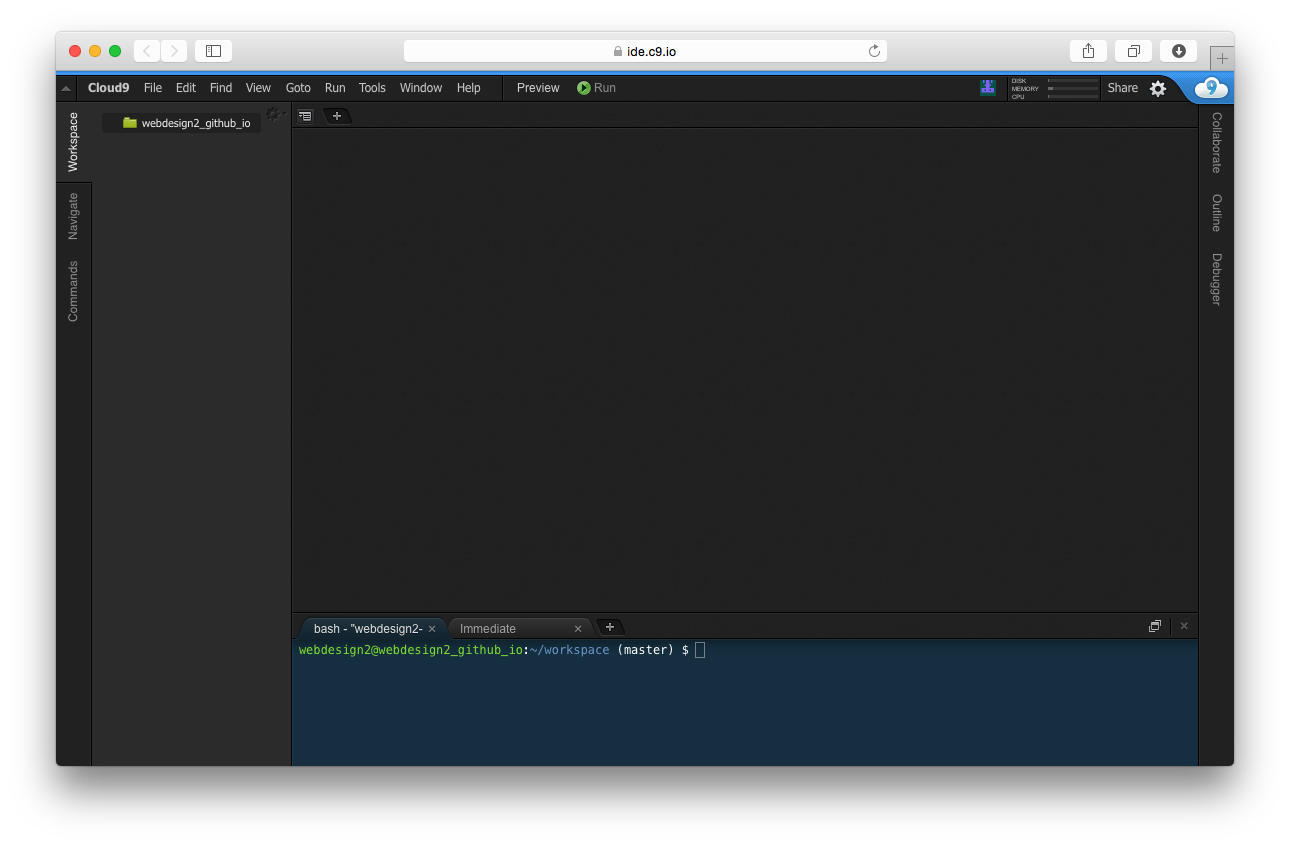
Once the repository is cloned, click Start Editing. This should bring you to the Cloud9 development environment, with a file tree on the left, workspace on the right (this may be obscured by some Welcome options—you can simply minimize from the top right), and bash terminal on the bottom (more about this later).
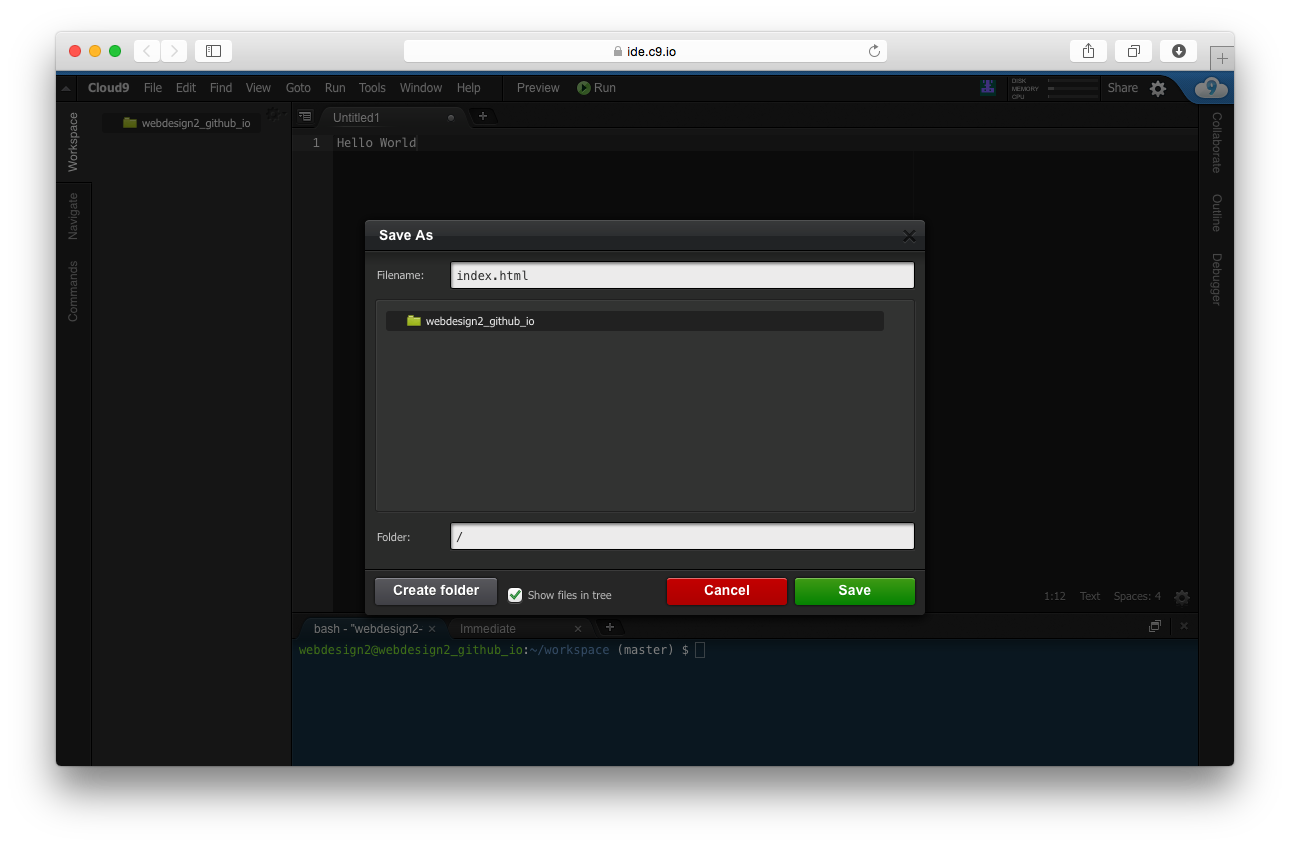
The first thing we should do is create an index.html file and push it back to GitHub. To do this, create a new file using the File > New File menu item. This should open a new file in the editing pane on the right. Type a few words here and use File > Save to save the file in Cloud9. The index.html filename tells our webserver to serve this page whenever someone visits our root URL (USERNAME.github.io).
Once we have saved our file, we need to commit our changes to GitHub. To do this, we use the terminal pane at the bottom, executing the following sequence:
git add .
git commit -a -m "Adding index file"
git push
Each commit should have a message attached to it. Typically this would describe the change made in the commit, so in this case I’m using “Adding index file”.
You might get a message along the lines of the following the first time you push back to GitHub:
The authenticity of host 'github.com (192.30.252.129)' can't be established.
RSA key fingerprint is 16:27:ac:a5:76:28:2d:36:63:1b:56:4d:eb:df:a6:48.
Are you sure you want to continue connecting (yes/no)?
Just type yes and hit enter. This should push the entire contents of your workspace up to GitHub. If the push was successful, you should see a message which reads similar to the following
Total 9 (delta 2), reused 0 (delta 0)
To git@github.com:webdesign2/webdesign2.github.io.git
   1a170ae..b67a674  master -> master
Congrats! You should now be able to see your little bit of text on the web at YOURUSERNAME.github.io. If you see a 404 Error page, don’t panic! Wait 15-20 minutes before checking again, GitHub occasionally takes a little time to sync the first push. Additional commits should sync more or less instantaneously.

Basic HTML page and tags
The basic HTML page structure is as follows:
Below are some common HTML tags that you can use to begin building your composition and index page.